Keyboard and Mouse Ergonomics: Type and Click Without Pain
Learn how to choose and set up ergonomic keyboards and mice to prevent strain, relieve pain, and type and click comfortably all day.
Why Ergonomics Matters
Healthy keyboard and mouse ergonomics protect your hands, wrists, shoulders, and neck from avoidable strain. Every keystroke and mouse movement is a small load; repeated thousands of times, those loads accumulate into repetitive strain. Ergonomics aligns your body and tools so the load is shared by larger muscle groups and distributed safely through joints. Look for a neutral posture where wrists stay straight, shoulders are relaxed, and the head balances over the spine. Early warning signs include tingling, numbness, warmth, stiffness, and fatigue after routine work. Ignoring them can turn brief discomfort into persistent pain that limits productivity and enjoyment. The goal is not perfection but sustainable comfort: small, consistent improvements in setup, technique, and habits. With thoughtful device choices and mindful movement, you can type and click without pain, reducing inflammation and enhancing precision. Treat ergonomics as an ongoing practice that adjusts with your tasks, workload, and changing needs.
Posture and Desk Fundamentals
Great ergonomics starts with your body's relationship to the desk. Set chair height so feet are flat, hips slightly open, and knees at a relaxed angle that keeps circulation flowing. Support the lower back with a cushion or contoured backrest to promote a gentle lumbar curve. Keep your elbows near 90 degrees with forearms parallel to the ground, and relax the shoulders away from the ears. Place the keyboard so the home row is at or slightly below elbow height, allowing neutral wrist alignment. Center the monitor in front of you, top of the screen near eye level, and about an arm's length away to reduce neck craning and eye strain. Maintain desk geometry that brings tools close to your midline; avoid reaching. A stable surface with room for forearm support helps reduce tension from hovering. If a keyboard tray is used, ensure it allows adequate knee clearance and preserves alignment rather than forcing wrists to bend or shoulders to shrug.
Choosing the Right Keyboard
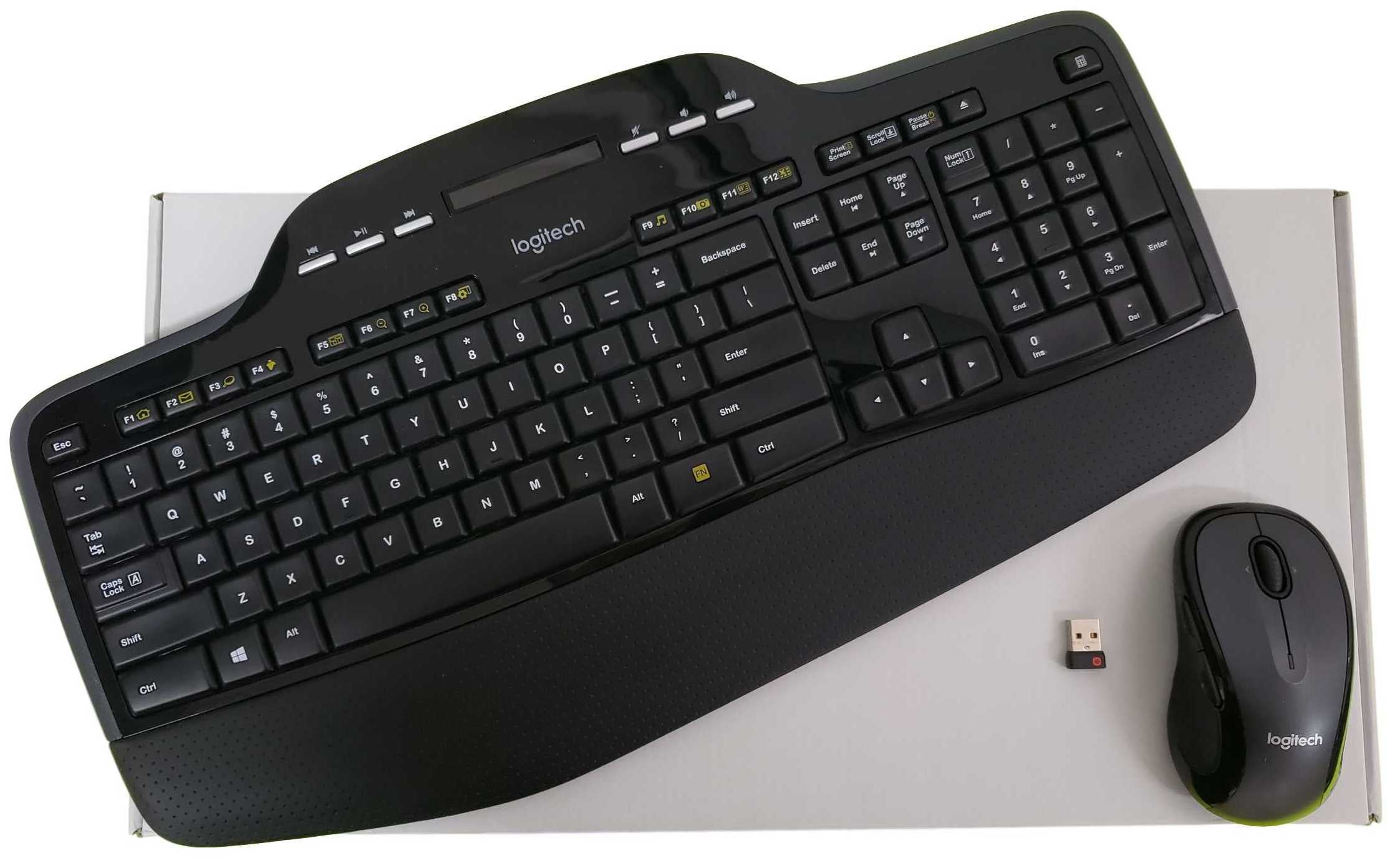
Your keyboard should match your hands, tasks, and typing style. A split keyboard can reduce ulnar deviation by letting each half sit where your arms naturally fall, while tenting tilts halves inward to reduce forearm pronation. If you float your wrists, a low-profile board may minimize extension; if you bottom out keys, consider switches with lighter actuation force to reduce impact. A compact layout shortens reach to the mouse, but ensure you keep essential keys accessible with shortcuts and key remapping. Some users benefit from ortholinear grids for consistent finger travel, while others prefer staggered rows for familiarity. Prioritize keycap legibility, stable stabilizers, and a gentle typing angle. Wrist supports should elevate the palm to keep a neutral angle, not press the wrist crease. Experiment with macro layers for repetitive sequences to reduce strain. The right board feels natural, encourages light touches, and supports accuracy without excessive pressure or twisting.
Selecting a Mouse and Mastering Grip
A good mouse reduces strain by fitting your hand and guiding a relaxed grip pattern. If you feel forearm twist or wrist compression, try a vertical mouse to promote a handshake posture. If shoulder movement is difficult, a trackball can limit arm travel, shifting motion to the fingers or thumb. Choose a size that fills your palm without forcing a squeeze. Match the device to your technique: palm grip for whole-hand support, claw grip for quick clicks with moderate arch, fingertip grip for agility with minimal contact. Adjust DPI and pointer speed so small, comfortable arm movements reach the full screen without overflicking. Keep pointer acceleration predictable to reduce micro-corrections. Additional buttons can offload repetitive actions, but map them thoughtfully. If pain persists on one side, practice switching hands during low-stakes tasks. The ideal mouse encourages relaxed shoulders, stable forearm rotation, and precise control without pinching or hovering.
Positioning for Neutral Movement
Proper device placement turns good tools into real comfort. Center the keyboard with the monitor so your midline matches the home row. Keep the mouse close to the keyboard edge to reduce reach; a compact keyboard can help. Aim for neutral wrists: straight, not bent back or sideways. Move the pointer using forearm and shoulder as the primary drivers, letting larger muscles handle travel while the hand performs gentle guidance. Avoid planting the wrist and making only tiny finger motions; this can create hot spots. Use a smooth mouse surface that allows easy gliding without excessive grip force. If you use a wrist or forearm support, rest on the broader forearm area rather than compressing the wrist crease. Keep the keyboard tilt flat or slightly negative to limit extension. Reposition tools periodically to prevent fixed postures, and rotate tasks that require different hand positions to distribute load across tissues throughout the day.
Breaks, Micro-Movements, and Recovery
Comfort depends on rhythm as much as hardware. Integrate microbreaks lasting seconds to reset posture and reduce cumulative load. Stand, roll the shoulders, open the chest, and let the wrists drift gently through flexion and extension without forcing end ranges. Periodically perform tendon glides and light nerve glides to maintain glide through soft tissues; keep intensity low and pain-free. Blink intentionally and look at distant objects to relax the eyes. Hydrate and vary your base: sit back, perch forward briefly, or stand for short intervals to change joint angles. Use timed work–rest cycles that nudge you before fatigue arrives, not after. If you notice tingling, warmth, or aching, de-escalate: reduce intensity, check neutral alignment, and apply movement variety. Sleep, gentle mobility, and short walks support recovery. Small, frequent resets protect comfort more effectively than occasional long breaks, preserving focus while lowering the risk of overuse.
Software Tweaks and Smart Habits
Software can cut repetition while boosting accuracy. Configure hotkeys, macros, and text expansion to collapse multi-step actions. Map common shortcuts to reachable keys or mouse buttons to prevent awkward reaches. Tune pointer speed so you cross the screen with relaxed arm movements; adjust scroll acceleration to reduce repetitive flicks. Consider sticky keys, tap-to-click, or gesture navigation if they reduce strain, and disable features that cause jittery, high-frequency corrections. Create a shortcut discipline: learn a small set deeply so your hands move consistently and lightly. Use voice dictation for high-volume text or when symptoms flare, alternating modalities to share the load. Track friction points—tasks that feel tedious or uncomfortable—and redesign them with templates, snippets, or batch processing. Build habit loops that pair microbreaks with natural task boundaries, like sending messages or compiling code. Review your setup regularly; small, targeted adjustments compound into lasting comfort.